
GA4 UTM Report: Find and Read Campaign Sessions
When you check a newly launched campaign in Google Analytics 4, it can be hard to know where to find the results. GA4 tracks tagged URL data, but it has no single standard screen called the GA4 UTM report. Finding your campaign sessions requires navigating the right acquisition menus and understanding how session-scoped dimensions differ from broader traffic channels.
A structured tracking workflow bridges this gap between creating a link and measuring its success. Using Trnqify allows you to review suggested UTM tags, generate a short link, and count redirect-level clicks in a privacy-focused dashboard. Once the redirect sends visitors to your site, GA4 takes over to measure destination sessions and engagement. These two systems work together to answer distinct questions about your campaign performance.
Locating UTM-Tagged Sessions in GA4
Google Analytics 4 separates traffic data into multiple views depending on the scope of the interaction. Seeing the specific source, medium, and campaign values appended to your URLs means finding the Manual report, which sits within the broader acquisition section of your property.
Open Google Analytics and go to Reports > Life cycle > Acquisition > Overview. Then find the “Sessions by Session manual source” card and click “View Manual campaigns” to open the dedicated Manual report. This report shows how effective manually tagged campaigns were at driving traffic to your website or app, with data available when UTM parameters are successfully sent in website click URLs or a mobile app sends the campaign_details event.
Customized properties might feature a different navigation structure. If the Manual report does not appear in your Acquisition menu, a user with Editor or Administrator access can add it directly from the report library.
You also have the option to view tagged traffic through the broader Traffic acquisition report, located directly under the main Acquisition menu. This alternative view evaluates all session sources alongside one another rather than filtering strictly for manually tagged campaigns.

Choosing Between Manual and Traffic Acquisition Reports
Selecting the right report depends on the scope of your measurement question. The Manual report exists specifically for evaluating tagged campaign values, making it the proper view for comparing different newsletters, specific social media posts, or partner links carrying your chosen UTM parameters.
Alternatively, the Traffic acquisition report helps you compare those tagged campaign sessions against broader channel traffic. It defaults to a dimension called “Session default channel grouping,” which sorts traffic into rule-based categories like Organic Search, Direct, and Email. Changing this primary dimension to “Session source / medium” or “Session campaign” displays your tagged traffic alongside auto-tagged advertising clicks and organic referrals.
The Traffic acquisition report uses session-scoped dimensions, so it groups sessions by their source. If your goal is determining how new users first found the site, the User acquisition report provides a better answer. Its user-scoped first-user dimensions show how new users first found your site, and a user’s later sessions remain associated with that original source.
Selecting UTM Dimensions and Metrics
Answering UTM-specific questions requires selecting the correct session manual dimensions in your reports. Start with the comparison you want to make, then choose metrics that answer it.
Match UTM Fields to GA4 Dimensions
When a visitor lands on your site with tagged parameters, GA4 translates those URL fields into corresponding reporting dimensions. Applying the session manual dimensions ensures the table displays hand-tagged values rather than a broader system categorization.
| UTM field | GA4 dimension | Useful for |
|---|---|---|
utm_source | Session manual source | Identifying the platform, publisher, or sender |
utm_medium | Session manual medium | Comparing channel types such as email or paid social |
utm_campaign | Session manual campaign name | Grouping sessions by campaign or initiative |
utm_content | Session manual ad content | Comparing creative versions or link placements |
utm_term | Session manual term | Reporting a keyword or other term when used |
utm_id | Session manual campaign ID | Identifying a campaign with a stable ID |
Consider an illustrative link tagged for a social media promotion:
https://example.com/webinar?utm_source=instagram&utm_medium=organic_social&utm_campaign=product_launch&utm_content=story_link
In this example, the Session manual source populates as “instagram” and the Session manual campaign name shows “product_launch”. Because Google treats UTM values as case-sensitive, a link tagged with Instagram and another tagged with instagram split your data into two separate rows in the Manual report.
Maintaining a consistent naming convention prevents this fragmentation, and using lowercase letters for all tags remains a standard practice that reduces errors. The Trnqify AI UTM Assistant helps enforce this consistency by suggesting campaign tags from a plain-language description. Reviewing the suggested tags before creating the short link keeps your tracking organized across channels.
Distinguishing between “Session campaign” and “Session manual campaign name” prevents reporting overlap. Session campaign operates as a cross-channel dimension that might pull in data from connected ad platforms, whereas Session manual campaign name isolates the exact utm_campaign value appended to the URL.
Comparing Session Quality and Outcomes
Once the fields match the correct dimensions, evaluating the traffic becomes straightforward. Start by comparing Sessions, Engaged sessions, Engagement rate, and Average engagement time per session over the same date range.
An engaged session in GA4 means a visit lasted at least 10 seconds, triggered a conversion event, or included two or more pageviews. Comparing the engagement rate across different “Session manual ad content” values reveals which creative placements brought interested readers versus accidental clicks.
When the property has key events configured, adding “Key events” or “Session key event rate” to the comparison table highlights the downstream outcome measures. These metrics show which manually tagged sources drive the most valuable actions on the destination site.

Understanding Campaign Sessions and Conversions
A campaign dimension indicates which source GA4 associated with a specific session, but it does not prove the campaign caused a key event. It also cannot show how credit splits across multiple touchpoints in a long customer journey.
GA4 describes its session attribution as non-direct last click. If a user arrives via a tagged newsletter link, leaves the site, and returns three days later by typing the URL directly into their browser, the session dimensions still attribute that return visit to the newsletter. The system ignores direct traffic whenever a known source exists within the lookback window.
Assigning conversion credit requires a different view because GA4 uses a reporting attribution model across interactions. When administrators change the reporting attribution model for key events, the change is reflected in key event reports and explorations that use event-scoped traffic dimensions. Meanwhile, user- and session-scoped dimensions, such as Session source or First user medium, remain unaffected by this model change.
Examining how different channels work together to drive purchases or signups means opening the Key event paths and Model comparison reports instead of relying on raw session counts.
Troubleshooting Missing or Unexpected UTM Values
Missing data typically stems from formatting errors or redirect configurations. A structured troubleshooting path isolates the problem when expected campaign values fail to appear in the Manual report.
Start by verifying the selected dimensions. GA4 omits UTM parameters from the “Landing page + query string” and “Page path + query string” dimensions, meaning searching for utm_source in those page-level reports returns nothing. Inspecting the manual campaign dimensions resolves this initial hurdle.
When relevant parameters drop from a tracked session entirely, GA4 might categorize the traffic as (not set). If values appear but fragment across multiple rows, inconsistent casing is the most common culprit. Reviewing active tags is the primary step for fixing unassigned traffic in reports. You can troubleshoot GA4 unassigned traffic step by step by auditing internal UTM conventions.
Traffic appearing as (direct) / (none) indicates GA4 received neither campaign tags nor referring website data. When a short link points to another redirecting URL before reaching the destination, the middle server might drop the query string, so testing the full redirect chain can reveal whether campaign parameters survive. Deploying dynamic UTM parameters and macros requires careful testing to ensure the final destination URL retains the tracking data.
After launching a campaign, use Realtime or DebugView to confirm that Analytics is collecting data, while many reports and explorations can take 24 to 48 hours to process data from your website or app.
Two constraints affect URL setup. Google Analytics terms of service prohibit sending personally identifiable information, meaning email addresses or customer names cannot reside in UTM values. Also, manually added UTMs do not automatically override Google Ads auto-tagging when both systems operate simultaneously. Property settings and ad platform configurations dictate which values take precedence.
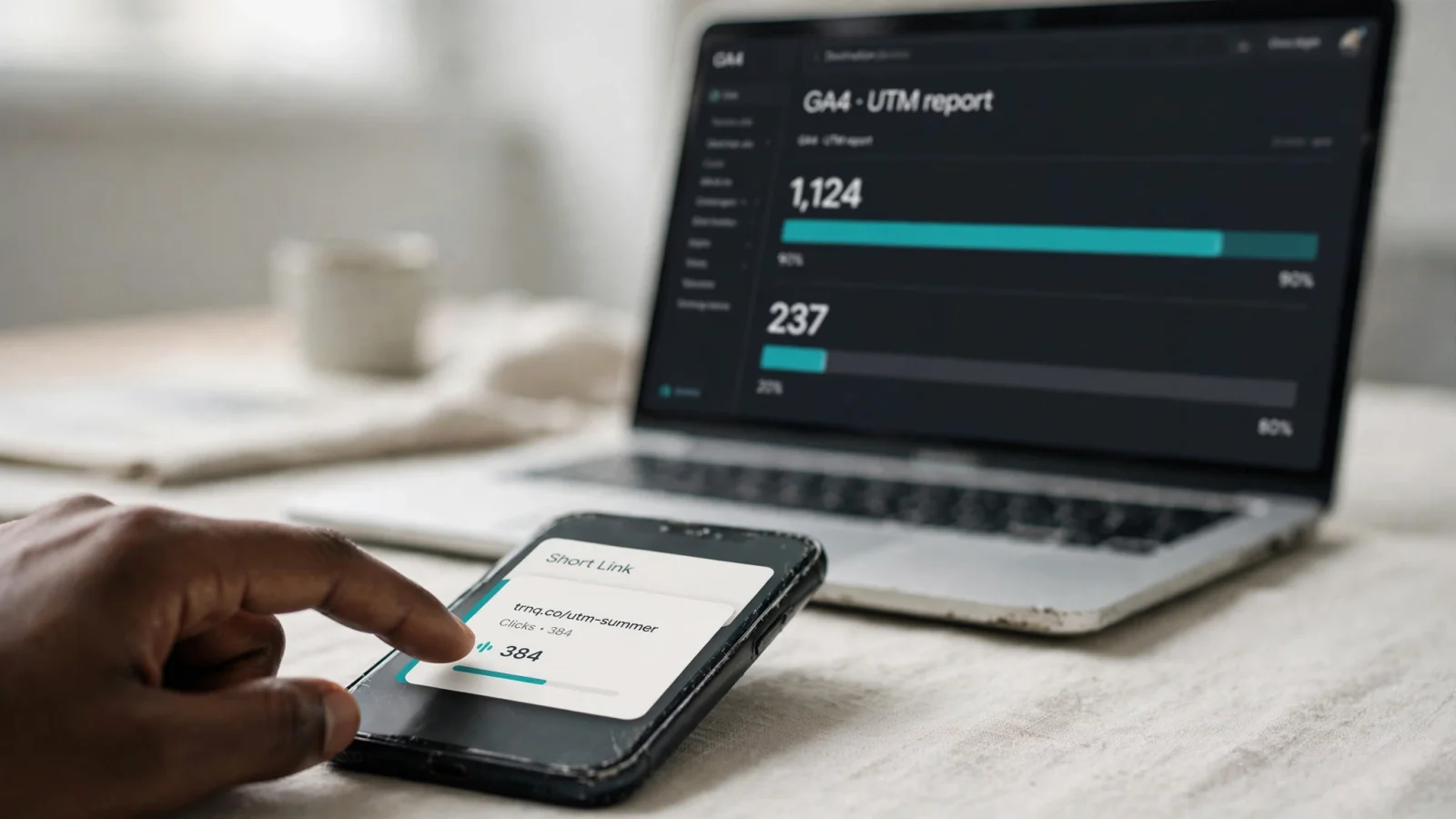
Comparing Short-Link Clicks With GA4 Sessions
Click counts and session counts measure different events in the lifecycle of a visit, making one-to-one matches rare.
Trnqify records a click at the exact moment the short link redirects the user. This click analytics measurement happens without cookies or tracking scripts placed on the shared link. The system counts the interaction and immediately forwards the user to the destination.
GA4 sessions represent measured activity occurring on the destination site itself. A visitor might click a short link but close their browser before the destination page loads the GA4 script. That action registers as a click in Trnqify while failing to become a session in Analytics. Conversely, a single redirect click could result in a user browsing the site, leaving, and returning the next day via a bookmarked URL, generating multiple sessions in GA4. The Manual report includes a Clicks metric, but this column populates only when an advertiser account links to the property rather than acting as a generic counter for shortened links.
A reliable campaign tracking workflow relies on both tools performing their specific jobs. Trnqify turns a plain-language prompt into a consistently tagged short link on the trnq.io domain, while logging redirect-level click activity and respecting privacy by never selling user data. Organizations on the Pro plan route these links through a custom domain. Once the visitor arrives at the final URL, GA4 takes over to measure destination sessions, site engagement, and configured key events.
Developers and technical teams frequently automate this link creation step. Trnqify offers an MCP (Model Context Protocol) server allowing AI agents like Claude, Cursor, and ChatGPT to manage short links programmatically. Connecting agents via OAuth allows you to manage tokens in an API Keys modal and revoke access at any time. REST API and Pro webhooks provide additional avenues for integrating campaign tracking directly into existing tools.
Separating redirect metrics from destination analytics provides a clearer picture of campaign performance. This division accurately tracks how many people attempted to follow the links before evaluating what those users accomplished upon arrival.
Stop wondering whether campaign links are formatted correctly. Create your next tracked URL with the Trnqify AI UTM Assistant and get accurate, cookie-free redirect measurement. Try Trnqify for your next campaign.
Frequently Asked Questions
How do I find UTM-tagged sessions in GA4?
Open Google Analytics and go to Reports > Life cycle > Acquisition > Overview. Click the 'Sessions by Session manual source' card, then 'View Manual campaigns' to open the dedicated Manual report. This shows how effectively manually tagged campaigns drove traffic to your site or app.
What's the difference between Manual and Traffic Acquisition reports?
The Manual report evaluates specifically tagged campaign values (your chosen UTM parameters), making it the right view for comparing newsletters, social posts, or partner links. The Traffic Acquisition report compares tagged campaign sessions against broader channel traffic using rule-based categories like Organic Search or Direct.
What's the difference between session-scoped and user-scoped dimensions in GA4?
Session-scoped dimensions (like Session source / medium) group each session by its source, so a return visit may be attributed to a different source. User-scoped dimensions (like First user medium) track how users first found your site and keep all their later sessions associated with that original source.
Why are my UTM values showing as (not set) in GA4?
Missing data typically stems from formatting errors, redirect configurations dropping query strings, or searching the wrong dimensions. GA4 omits UTM parameters from 'Landing page + query string' and 'Page path + query string' dimensions. Verify you're using the manual campaign dimensions, check for inconsistent casing (GA4 is case-sensitive), and test your full redirect chain.
How do I troubleshoot missing UTM data in GA4?
First verify you're selecting the correct manual campaign dimensions. If values appear fragmented across multiple rows, inconsistent casing is likely the culprit — audit active tags and standardize to lowercase. If traffic shows as (direct) / (none), the short link or redirect chain may be dropping query parameters. Test the full redirect path and use Realtime or DebugView to confirm Analytics is collecting data.