
Troubleshoot GA4 Unassigned Traffic Step by Step
GA4 shows Unassigned when no rule in the selected channel group matches a session’s traffic-source data, so a tagged link can still appear that way if its source or medium has no matching rule. The Google Analytics documentation explains that (not set) can indicate missing session or user identity information, so check channel rules for Unassigned and investigate session or user identity information for (not set).
Before adjusting your tracking settings, gather the information and access you’ll need: edit access to the GA4 property, the exact published URLs used in the campaign, and access to the destination website to test tag execution.
Clean reporting requires properly tagged URLs. Trnqify helps you generate and monitor short links with an AI UTM Assistant that suggests consistent campaign parameters. While a redirect-time click recorded by the platform proves the audience used the link, it does not guarantee that GA4 received the campaign values or assigned the destination session to the intended channel. Isolating that gap means tracing the path from the Analytics report back to the published link.

Step 1: Check the Right Acquisition Report
Open the GA4 interface and navigate to the Reports section. Click Acquisition, followed by Traffic acquisition. This specific report focuses on session-scoped dimensions, which describe the traffic source that started the current visit. One common misstep is checking the User acquisition report instead. Because that view displays first-user dimensions, it shows how a person first found the site, regardless of the subsequent campaign session you are trying to investigate.
The default view in the Traffic acquisition report might hide the specific data causing the Unassigned classification. Above the first column of the data table, click the plus icon to add secondary dimensions. Alongside the Session default channel group, add Session source / medium and Session campaign. If you rely on manually tagged campaign links, also add Session manual source / medium. Some property configurations include a dedicated Manual report in the sidebar collection, which provides these manual dimensions by default.
Comparing these columns helps pinpoint the problem. If the session source or medium shows (not set), the tracking data never reached GA4, so the next step is to investigate data capture and session setup. When the values are present but the channel group says Unassigned, data capture works, but the resulting values fail to align with Google’s classification rules.
Step 2: Compare UTMs With Default Channel Rules
GA4 relies on the source and medium values to classify traffic into its default channels. Compare the exact text in your session source and medium columns against Google’s default channel definitions. These rules use specific string combinations to route traffic, and a slight deviation leaves the session without a matching rule.
| Example UTM values | Likely default classification |
|---|---|
utm_source=weekly_newsletter · utm_medium=email · utm_campaign=fall_launch | Email, because the medium is email. |
utm_source=facebook · utm_medium=paid_social · utm_campaign=fall_launch | Paid Social, if GA4 recognizes the source as a social site and the medium matches the paid rule. |
utm_source=instagram · utm_medium=social · utm_campaign=fall_launch | Organic Social, if GA4 recognizes the source or the medium matches the Organic Social rule. |
utm_source=creator_jules · utm_medium=creator · utm_campaign=fall_launch | Unassigned, if neither the source nor the medium matches a predefined default rule. |
These classifications depend on exact pattern matching. A campaign labeled with a facebook source and a paid_social medium maps to the Paid Social channel because GA4 recognizes the source as a social network and the medium matches the expected paid string pattern. If you use a custom structure like creator_jules for the source and creator for the medium, the traffic remains Unassigned unless those specific words match another default rule. The internal rules rely on strict regex patterns, such as a medium containing the word paid. Writing social_paid instead of paid_social might break the expected pattern for specific channels.
Because Google’s default channel definitions are not case-sensitive, capitalization does not change how their rules are evaluated; use lowercase UTM values for consistent campaign naming.
Google includes an AI Assistant channel in its default definitions. For manual traffic, this rule requires the medium ai-assistant when the referrer matches Google’s recognized list of AI tools. This definition classifies incoming referrals from external AI platforms, rather than classifying a link generated by an AI marketing assistant.
A standard workflow using Trnqify prevents typos before a link goes live. You describe the campaign in plain language, and the in-app AI UTM Assistant suggests the source, medium, and campaign values. Verify that the suggested medium fits the intended GA4 channel rule, create a trnq.io short link or a Pro custom-domain link, and publish the URL. Developers building automated workflows with Trnqify’s MCP server or REST API should enforce a similar quality assurance step, validating the medium values against the chosen taxonomy programmatically before the agent publishes the link.
If you cannot find the expected parameters in standard reporting views, check the Page location dimension. GA4 strips campaign parameters from the Landing page + query string and Page path + query string dimensions, moving that data into the full Page location path instead. You can use the session manual-source dimensions to verify the parameters arrived intact.
Step 3: Test the Final URL and Redirect
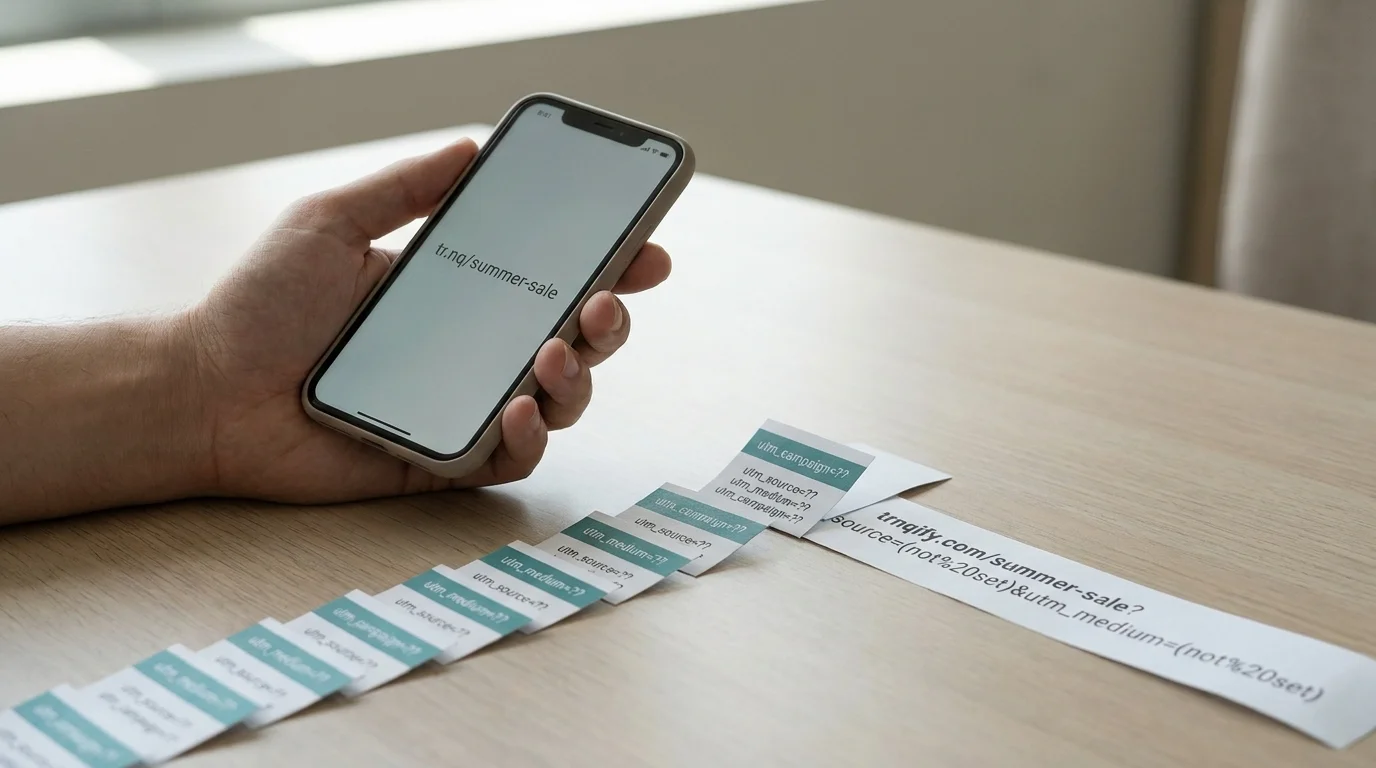
The values you configure in a link manager must survive the journey to the final destination. Click the published short link and watch the browser address bar as the page loads. Inspect the final resolved landing-page URL, not only the destination URL saved in the link manager platform.
When a browser follows an HTTP redirect, the destination server must be configured to accept and preserve the query string. A server redirect that drops the ?utm_source=... portion strips the campaign data before the tracking script executes on the landing page. If the parameters vanish before the Google tag initializes, Analytics records the visit as a direct session or leaves the source as (not set).
To check whether a redirect preserves campaign parameters, append a test parameter such as ?utm_source=test to the landing-page URL and confirm that it remains on the final page. This check matters because the Google Ads troubleshooting guidance says a redirect that removes GCLID or UTM parameters can cause attribution issues and discrepancies between Google Ads clicks and Google Analytics sessions.
Advertising platforms introduce auto-tagging conflicts that complicate this process. When manual UTMs and auto-tagging operate simultaneously, Analytics uses the auto-tagged values for the primary classification dimensions, though manual utm_content and utm_term parameters may still populate their respective fields in the report. If a GCLID or DCLID breaks during the redirect but a partial UTM parameter survives, Analytics might derive cross-channel dimensions from the partial manual data while leaving other values missing.
Testing the final URL also highlights the difference between click tracking and web analytics. Trnqify logs a click at redirect time, measuring link engagement without placing cookies or tracking scripts on the shared link, and a custom domain on the Pro plan follows the same redirect mechanics, passing the appended query parameters directly to the destination. GA4 measures destination sessions based on the data that survives the redirect and loads in the browser, so the two totals rarely match perfectly. A Trnqify click proves the audience used the link, while the final resolved URL determines how GA4 classifies the resulting session. Because the two platforms capture data differently, their totals are not expected to match one-to-one.
Step 4: Check Tag Timing and Data Freshness
Missing data points to the on-page execution rather than the link configuration. If the report shows (not set) for the session source or medium, inspect the tag initialization sequence. The Google tag requires initialization and configuration before other events trigger on the page. A delayed configuration or a missing session_start event forces Analytics to process the visit without a valid session context.
The Google Analytics documentation explains that when the automatically collected session_start event is missing, Session source / medium reports (not set), so the default channel group shows Unassigned. It also says this can happen when the Google Analytics config tag trigger is not set to Initialization, so set that trigger to Initialization.
You can verify the firing order using the browser developer tools. Open the Network tab and filter the network requests for the term collect to isolate the GA4 tracking payloads. After reloading the landing page, select the first request in the list, scroll through the payload parameters, and locate the en parameter, which stands for event name. The value should be session_start. If the page view event fires before the session start event, the attribution data disconnects from the subsequent user actions. Ensure your consent management platform and tag manager load the core configuration before tracking page views or custom events.
Timing also applies to the reporting interface itself. Diagnosing an attribution issue based on traffic that arrived three hours ago can lead the investigation in the wrong direction, because intraday reporting frequently contains temporary gaps in event-scoped traffic-source dimensions. The data processing pipeline requires time to reconcile events, assign attribution models, and apply channel rules across the session. Wait until the daily data finishes processing before permanently altering your campaign tags or restructuring your channel rules.
Step 5: Choose the Right Fix for Your Campaign
Your test results point to the right fix. If your testing revealed missing parameters in the final URL, correct the tracking implementation. Repair the server redirect chains that strip query strings, audit your auto-tagging setup to ensure the identifiers survive the jump, and adjust the tag manager so the Google tag fires at the correct time with the session_start event included.
When the parameters successfully reach GA4 but the channel remains Unassigned, choose whether to adjust your campaign tags to match Google’s predefined rules or adjust GA4 to understand your existing tags.
Altering the tags makes sense if you made a typographical error, such as typing email_newsletter instead of email for the medium. Correcting the medium aligns future traffic with the default Email channel. Change the medium only if the new value accurately describes the campaign. Forcing a custom affiliate link into the Organic Social channel to avoid the Unassigned label damages the integrity of your reporting.
For intentional campaign taxonomies that do not fit the default definitions, build a custom channel group. Because the predefined default channel group cannot be edited, a custom channel group allows you to define rules that match your specific organizational conventions, assigning the exact source and medium combinations you use to distinct reporting channels.
Navigate to the Admin gear icon in the lower left of the GA4 interface. Under the Data display column, click Channel groups, then select Create new channel group and name the group based on your tracking model.
Rule order matters when building these custom rules. Analytics assigns traffic to the first channel condition that matches the data, evaluating the list from the top down, so place your most specific rules at the top of the list and broad fallback rules at the bottom. Once saved, custom channel groups apply to historical data in your reports, meaning you can view past campaigns through the new classification rules immediately. If you set the new custom group as the primary channel group for the property, those specific criteria will populate the primary dimension moving forward.
When properly tagged traffic appears as Unassigned in GA4, it indicates a mismatch between your naming convention and Google’s expectations, not a failure of the tracking link itself. By verifying the session scope, confirming the redirect preserves the query string, and matching the exact medium values to the channel definitions, you regain control over the reporting output.
Trnqify offers privacy-first AI link shortening and UTM campaign tracking. Create consistently tagged links with the AI UTM Assistant, manage programmatic campaigns via the MCP and REST API, and track clicks at redirect time without cookies. Explore Trnqify features to improve your campaign workflow.
Frequently Asked Questions
Why does GA4 show Unassigned for traffic I tagged with UTM parameters?
GA4 assigns a session to 'Unassigned' when no channel group rule matches the session's source, medium, or campaign values. This happens even when your link is properly tagged — a slight deviation in the UTM medium (like `social_paid` instead of `paid_social`) will not match Google's default channel rules, leaving the session unclassified.
How do I find Unassigned traffic in GA4?
Open the GA4 interface, navigate to Reports > Acquisition > Traffic acquisition. Click the plus icon above the data table to add secondary dimensions, then add 'Session source / medium' and 'Session campaign'. Comparing these columns alongside 'Session default channel group' reveals whether the issue is missing parameters `(not set)` or a classification mismatch (values present but channel says Unassigned).
What is the difference between 'Unassigned' and '(not set)' in GA4?
'Unassigned' means tracking data reached GA4, but no channel rule matched the UTM values — the session was captured but not classified. '(not set)' means the tracking data never reached GA4 at all, usually because a server redirect stripped the query string before the Google tag initialized.
How do I fix Unassigned traffic caused by custom UTM values?
You have two options. First, adjust your campaign tags to match Google's predefined channel rules (e.g., use `email` as the medium instead of a custom value). Second, create a custom channel group in GA4 Admin > Channel groups > Create new channel group. Define rules matching your specific source/medium combinations. Custom channel groups apply to historical data immediately, so past campaigns will reclassify once you save.
Why do my Trnqify click counts not match GA4 sessions?
They are not expected to match one-to-one because the platforms measure different things. Trnqify logs a click at redirect time (measuring link engagement without cookies), while GA4 measures destination sessions based on the Google tag that loads in the browser after the redirect. A Trnqify click proves the audience used the link; GA4 classifies the resulting session only if parameters survive the redirect and the tag fires.