Webinar UTM Tracking for Every Touchpoint
Webinar UTM tracking helps connect the promotional messages you send with the audience that arrives on the day of the event. Tag webinar invitations, reminders, and replays consistently, then compare link clicks with the registrations and attendance recorded by your event platform.
Connecting these measurements requires a clear division of labor. Short-link clicks measure engagement with your outbound message, destination analytics track landing-page behavior, and the event platform records completed registrations alongside event attendance. Trnqify acts as the bridge at the start of that journey. It turns a plain-language prompt into a consistently tagged short link and measures the resulting clicks without dropping tracking scripts on the shared URL.
Before you generate a single promotional link, you need a stable framework for what you are measuring, what the platform supports, and how you will reconcile the differences between a clicked link and a seated attendee.
What Webinar UTM Tracking Measures and What It Does Not
UTM parameters append text labels to the end of a URL, organizing incoming traffic by its origin and purpose. Google Analytics relies on these manual campaign tags to populate traffic-source dimensions in its acquisition reporting.
These tags do not magically count webinar registrations or attendance. They exist to carry context to the destination. When a user clicks a tagged link, three distinct measurement events occur:
- The short-link click: A link shortener or redirect service records that a user engaged with the link.
- The destination visit: The landing page loads, and its analytics script records a session.
- The registration event: The user completes the form, and the webinar platform records an attendee, ideally capturing the UTM parameters from the URL at the moment of submission.
Using Trnqify for the first step gives you click measurement on the redirect itself. Because the click is recorded before the user reaches the destination, this portion of the journey avoids client-side tracking scripts. Click measurement on a shared link does not make the entire registration journey cookie-free, however. The destination page and the webinar platform will still use their own tracking methods to record the sign-up.
Before You Build Links, Define the Measurement Goal
Webinar promotion happens in stages, and each stage points to a different destination with a specific expected outcome. Building links without mapping these destinations results in messy data, causing an attendee reminder to be counted as a failed registration attempt.
First, gather the exact URLs for your registration page, the supported join link for registered attendees, and the post-event replay page. Next, decide what each shared link is intended to drive. A promotional invitation sent three weeks early leads to the registration page, so the outcome you evaluate is completed registrations. A last-minute email sent to people who already registered leads to a join page, making attendance the metric you track.
Finally, decide how you will treat the replay. If you want to view the entire lifecycle of a single event in one report, keep the replay promotion under the same campaign name as the invitations. If the replay will be gated and used as an ongoing lead-generation asset for months, you may choose to treat it as a separate initiative entirely. Keep a simple spreadsheet mapping each touchpoint to its destination URL and intended outcome.
Step 1: Set a Consistent Campaign Naming Structure
UTM values are case-sensitive. If you tag one link with Social and another with social, your reporting platform will split them into two separate line items. Establish a lowercase convention before you start and stick to it.
A standard webinar campaign uses four core fields, with utm_term reserved for paid-search keywords when relevant:
- utm_source: The publisher, platform, or list sending the traffic. Use values like
linkedin,newsletter, orpartner_brand. - utm_medium: The channel type. Use values like
social,email, orpaid_social. - utm_campaign: The overarching webinar initiative. Keep this stable across all related promotion, using a specific identifier like
2026q4_product_demo. - utm_content: The specific touchpoint, stage, or creative variation. Use values like
invite_post,reminder_24h, orreplay_email. - utm_term: Reserve this exclusively for paid-search keywords, if relevant to your promotion.
When assembled, an illustrative registration URL looks like this:
https://events.example.com/register?utm_source=linkedin&utm_medium=social&utm_campaign=2026q4_product_demo&utm_content=invite_post
Keep the campaign name identical throughout the entire promotion cycle.
Step 2: Tag Each Webinar Touchpoint
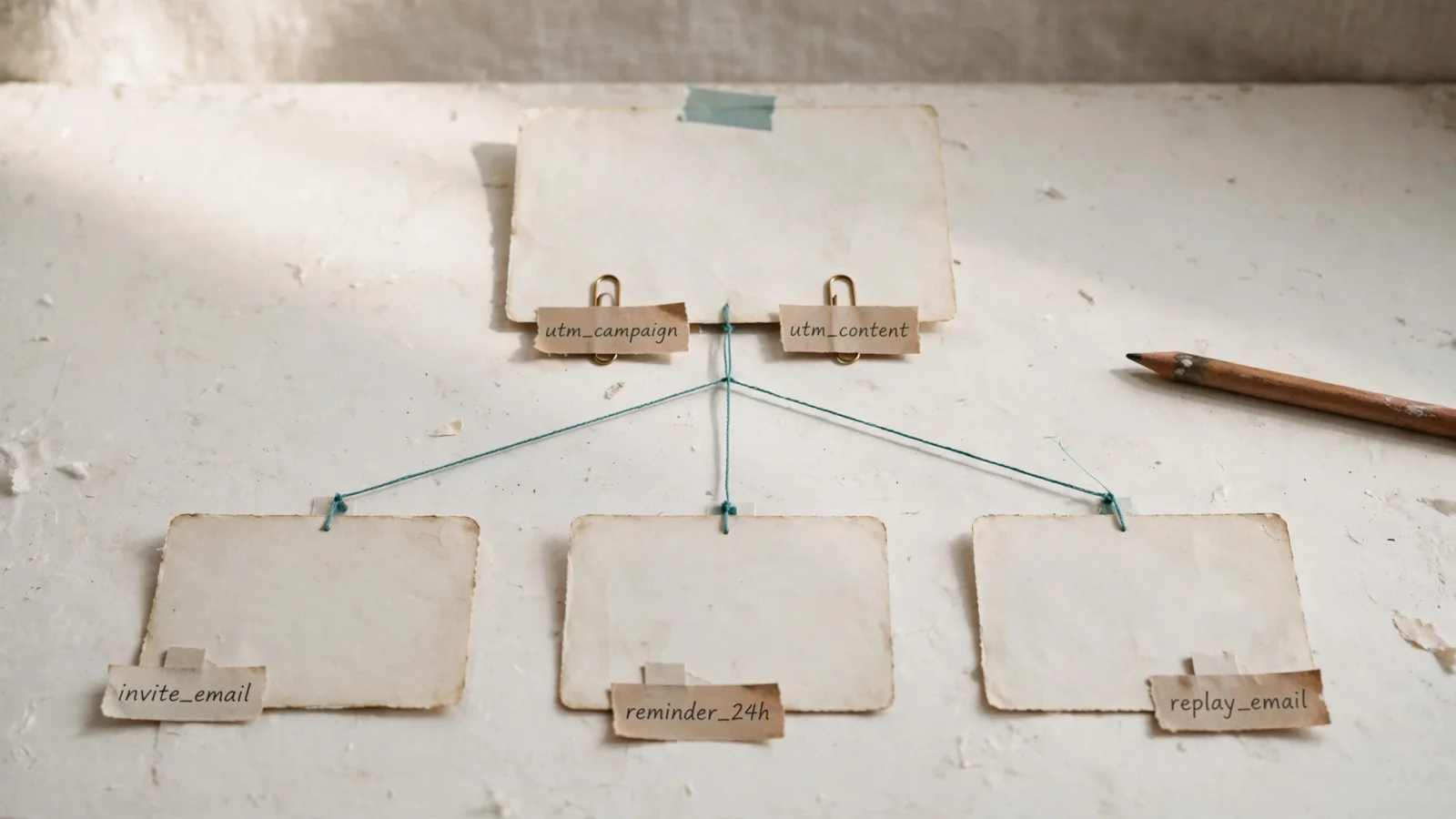
With the naming structure set, create a separate link for every distinct touchpoint in your promotional sequence. A single webinar campaign typically includes five distinct stages.
| Touchpoint | Destination | Example utm_content | Main outcome to evaluate |
|---|---|---|---|
| Organic social invitation | Registration page | invite_post | Registrations |
| Newsletter invitation | Registration page | invite_email | Registrations |
| Last-call message | Registration page | last_call_email | Registrations |
| Reminder to registrants | Join page or event link | reminder_24h | Joins or attendance |
| Replay follow-up | Replay page | replay_email | Replay views |
Creating these links manually invites typos and broken parameters. Trnqify’s AI UTM Assistant removes the friction of formatting the query string. You type a plain-language description, such as “LinkedIn post for the Q4 product demo invitation,” and the assistant suggests the appropriate source, medium, and campaign tags.
From there, you generate a unique short link for each touchpoint. Trnqify’s Free plan includes unlimited links and clicks, with a marketing interstitial added after 1,000 requests per month. If you run automated webinar sequences, the Standard plan removes the interstitial and adds API and MCP (Model Context Protocol) access, allowing AI agents to generate these tagged short links programmatically. Pro accounts add custom domains and signed webhooks, pushing click data back to your systems in real time.
If you are promoting a webinar offline or through text messages, review the specific formatting requirements for SMS link tracking to ensure mobile devices handle the parameters correctly.
Step 3: Test What the Event Platform Captures
Do not assume your event platform automatically reads and reports every UTM parameter you append. Many platforms capture the source and medium but ignore the content field entirely. Making testing a formal pre-launch step prevents you from discovering reporting gaps after the event has ended.
Copy your first tagged short link and paste it into a private browsing window. Confirm that the redirect works and that the full UTM string appears in the destination URL bar. Next, submit a test registration using a dummy email address.
Open your event platform’s analytics dashboard and inspect the test registration, then look for the exact tags you passed. For example, Wistia’s Registration tab shows impressions, registrations, and attendees for each Campaign, Source, Medium, Content, and Term value.
If your platform drops the utm_content field, you will not see the difference between an early newsletter invite and a last-call email inside the event platform’s own reports. In that scenario, you will rely entirely on the link-level click totals from Trnqify to compare the performance of different touchpoints, using the event platform only for the total aggregate registration count.
Step 4: Reconcile Clicks With Registrations and Attendance

When the webinar concludes, you will pull the click report from your shortener and the registration report from your event platform. The numbers will not match. A link might show 400 clicks in Trnqify, but Google Analytics might report 350 destination sessions, and the event platform might show only 85 registrations.
This drop-off is normal, but you have to understand the mechanics causing it before you can interpret the success of a campaign. Treat link clicks, destination visits, completed registrations, and attendance as separate metrics. Avoid describing a click count as unique people or assuming every click represents a registration.
Several technical factors cause these reports to diverge:
Registration-time capture vs. session tracking: Webinar platforms generally record UTM parameters only when a user successfully submits the registration form. If a user clicks a tagged link on Monday, reads the page, leaves, and then returns directly on Thursday to register, the event platform will likely record an untagged registration. Zoom Events explicitly notes that a later tagged visit does not update an earlier registration made without parameters.
Privacy tools and tracking blockers: Aggressive browser privacy settings or network-level ad blockers often strip UTM parameters from URLs before the landing page loads, or they block the destination analytics script entirely. Because Trnqify relies on redirect-level tracking to measure clicks without cookies, it accurately counts the initial link engagement even if the user’s browser subsequently blocks the landing page’s tracking scripts.
Traffic-source reporting: In Google Analytics, the Traffic acquisition report includes session-scoped traffic-source dimensions that describe a user’s most recent session, whether the user is new or returning.
Duplicate handling: A single user might click a reminder email three times in one day. Trnqify will record three clicks, but the event platform will recognize the returning email address and maintain a single attendee record.
The Reconciliation Checklist
Apply this workflow to align your data after the event:
- Verify the timeframes: Set both the link-click report and the event-platform report to the exact same date range, ensuring you account for time zone differences.
- Compare clicks to sessions: If link clicks vastly outnumber destination sessions, investigate whether a broken redirect, a slow-loading landing page, or aggressive tracking blockers caused users to abandon the journey before the destination analytics loaded.
- Calculate a click-to-registration rate: If the event platform attributes completed registrations to a specific touchpoint, divide that count by the total link clicks for the same touchpoint. If the platform reports only aggregate registrations, you can compare click totals across touchpoints, but cannot calculate a touchpoint-specific conversion rate from those reports.
- Compare reminder clicks with attendance: If your event platform attributes attendance to the
reminder_24hlink, compare those clicks with the attendees attributed to it. Otherwise, treat link clicks and total attendance as separate figures. If reminder clicks are high but attendance is low, check whether the join link required an additional, unexpected login step that caused attendees to drop off.
Measure the Complete Journey
Webinar measurement works best when you respect the boundaries of your tools. Let your event platform govern the official registration and attendance counts, while your web analytics measure landing page behavior, and your tagged short links track outbound message engagement.
When you keep your campaign naming consistent and assign a unique link to every invitation, reminder, and replay, you can compare channel performance across clicks, registrations, and attendance, as far as your event platform’s data allows.
Start building a cleaner data foundation for your next event. Use Trnqify’s AI UTM Assistant to format your campaign tags, generate short links for every touchpoint, and measure clicks without selling user data. Set up your next webinar campaign at Trnqify.
Frequently Asked Questions
What Are UTM Parameters and How Do They Work?
UTM parameters are text labels appended to a URL that tell your analytics platform where traffic came from. They include five fields: utm_source (the publisher), utm_medium (the channel), utmr_campaign (the campaign name), utm_content (the specific touchpoint or creative variation), and utm_term (reserved for paid-search keywords). Google Analytics uses these to populate acquisition reporting, but the parameters themselves do not count registrations or attendance — they carry context to the destination.
Why Don't My Click Numbers Match Registration Numbers?
A link click, a destination session, and a completed registration are three separate events. Trnqify counts the click at redirect time before the user reaches your landing page. The destination analytics platform records a session only if its tracking script loads successfully — privacy tools and ad blockers often strip UTM parameters or block the script entirely. The event platform records a registration only when someone submits the form, and many platforms drop certain UTM fields (especially utm_content) entirely. Expect a funnel-shaped drop-off between clicks and attendance, and treat each metric separately rather than assuming they represent the same count.
Does My Webinar Platform Capture All UTM Parameters?
Many platforms capture source and medium but ignore the content field entirely, which means you cannot distinguish between an early newsletter invite and a last-call email inside the event platform's own reports. Test by clicking your tagged short link in an incognito window, submitting a dummy registration, and inspecting the analytics dashboard. If your platform drops utm_content, you will need to rely on Trnqify's click-level data to compare individual touchpoint performance, using the event platform only for aggregate registration counts.
Should I Use the Same Campaign Name for Replay Links?
It depends on your reporting goals. If you want to view the entire lifecycle of a single event in one report, keep the replay promotion under the same campaign name as the invitations — this way utm_content differentiates invite, reminder, and replay. If the replay is gated and used as an ongoing lead-generation asset for months, treat it as a separate initiative with its own campaign name. In either case, keep the campaign identifier identical across all links within that initiative.