
How I Gave an AI Agent My Link Shortener (and What Goes Into the Design)
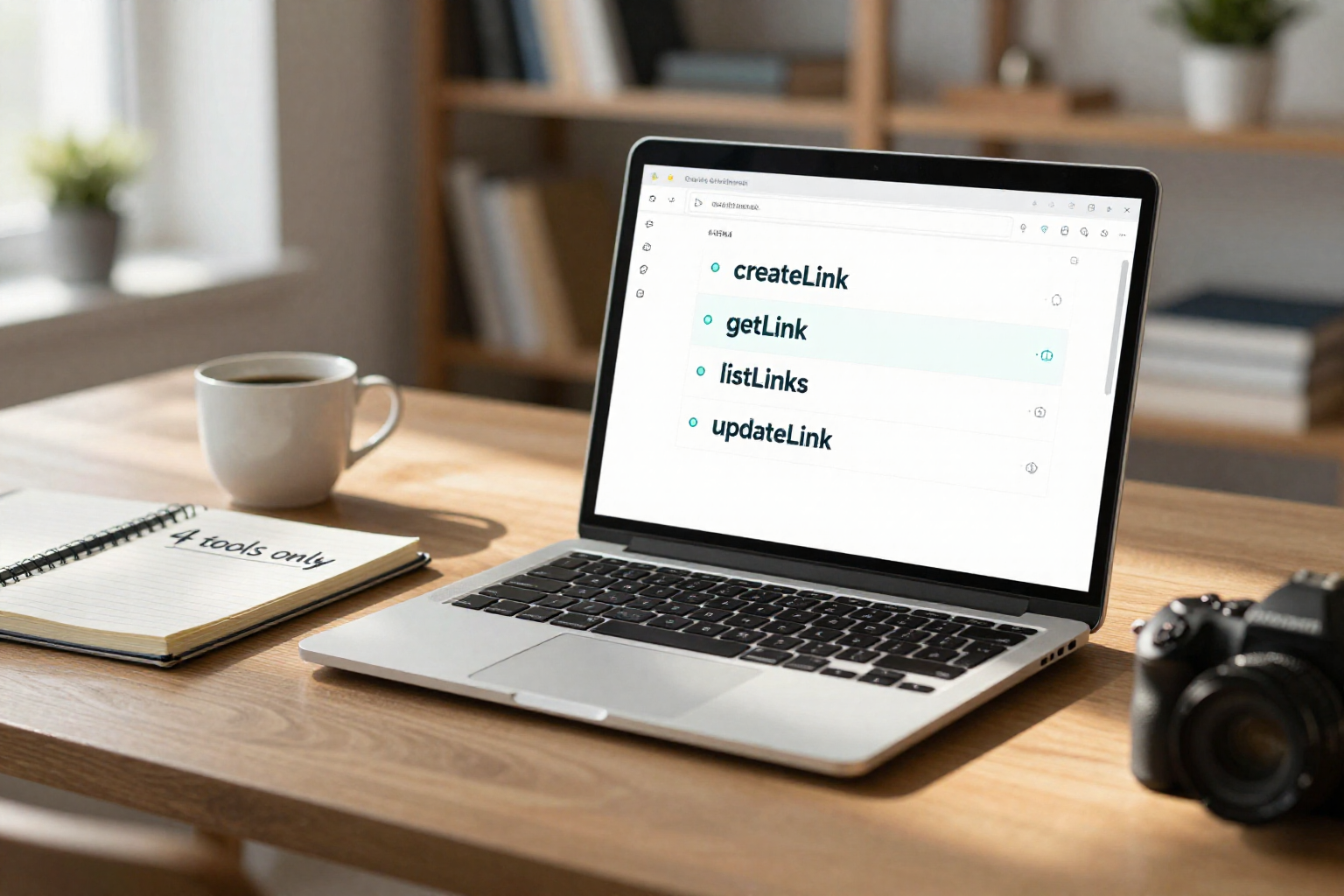
Image created with AI.
The Model Context Protocol was supposed to make agents safer. Instead, I had to learn the hard way that fewer tools don’t mean less surface area — they just make failures harder to debug.
TL;DR: The Trnqify MCP server exposes four tools: createLink, getLink, listLinks, and updateLink. That’s it. MCP works on Standard and Pro plans; the Free plan doesn’t include it. Authentication is automatic — the agent doesn’t handle auth. The AI agent asks for context before calling createLink. What went wrong: the agent created links without UTM tags when it didn’t ask, and I had to build guardrails into the tool schema itself.
Want to give your AI agent a link shortener?
Four tools, no auth keys to manage. Connect Claude or ChatGPT through Trnqify's MCP server.
Try Standard free for 14 days. No card. Sign up, or log in to your Free account, and the trial starts automatically. After that it’s $9/month if you add a card, or you go back to the Free plan.
Why bet on agent usability?
Here’s the gap: every link in a campaign needs utm_source, utm_medium, and utm_campaign applied consistently. People in a hurry skip it, or apply it slightly differently each time. Agents are good at tedium — they apply the same rules identically, every time.
No one else has solved this. You can generate links through the Trnqify REST API, but that requires writing code or managing keys. You can create links in the app, but that’s manual. There’s no way to create a tracked short link directly from your AI tool — Claude, ChatGPT, or otherwise — without leaving that environment.
So I built an MCP server: four tools, no extras, designed so agents can create tracked links directly from within their AI interface. The whole process is automated. That’s how this blog works: the agent that drafts each post creates its tracked links through Trnqify’s MCP server, using one naming convention.
This is post 03 in a weekly series on building Trnqify. If you want to follow along, the docs are at docs.trnqify.com.
The four tools, and why that’s enough
The MCP server exposes exactly four tools:
createLink— create a new short link with optional UTM parameters, custom slug (Pro), and preview metadatagetLink— fetch an existing link by path, including analytics summarylistLinks— list all links for the authenticated user, with filteringupdateLink— update an existing link (long URL, UTM params, preview metadata)
Four tools. That’s the entire surface area. No bulk import, no team management, no UTM normalization — nothing extra to misconfigure or break.
The design decision here was deliberate. Every additional tool is another path for an agent to do something you didn’t intend. With four tools, the agent can create links, retrieve them, list them, and update them. That’s what a link shortener needs to do from an agent’s perspective.
If the AI agent on Trnqify asks for everything in one shot, it’s doing too much. The agent is designed to ask for the link’s context or use case before calling createLink. That’s a feature, not a bug — it forces the agent to think about what it’s creating.
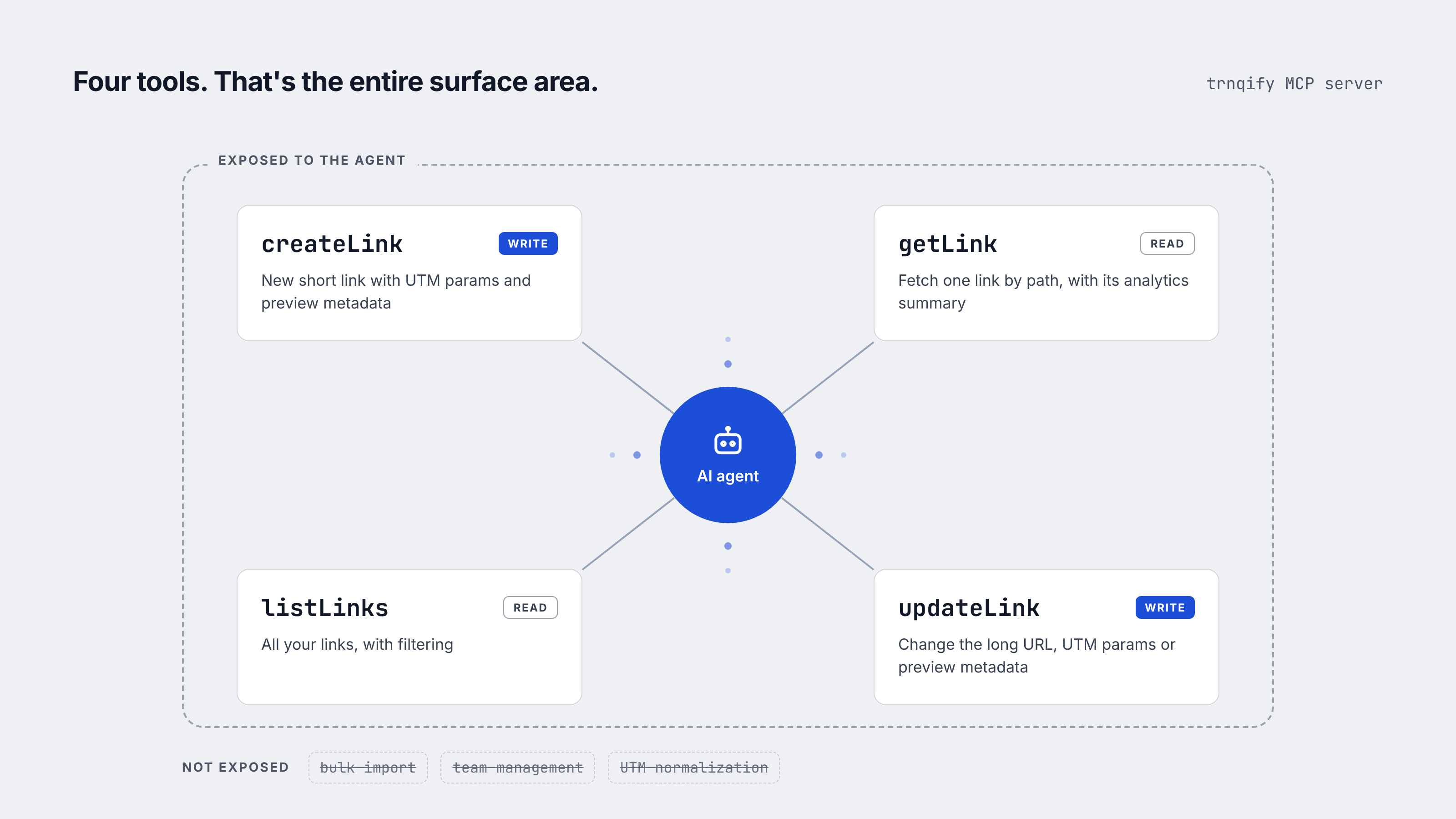
Image created with AI.
Auth and limits: who can use the MCP server?
MCP works on Standard ($9/mo) and Pro plans. The Free plan does not include MCP access.
Authentication is automatic — the agent doesn’t handle auth. There’s no key to manage, no token to pass. The system handles it behind the scenes so you can focus on what links you’re creating and why.
Plan limits and daily AI caps apply to agent calls, so there’s a hard ceiling on what an agent can do in a given day. This isn’t just rate limiting; it’s budgeting for the agent’s work.
What it’s like: a real prompt and tool result
Here’s what creating a link through the MCP server actually looks like. This is a real prompt and tool result from the live server, used in this post:
createLink(
  longUrl="https://docs.trnqify.com/mcp-setup",
  name="mcp-docs",
  source="blog",
  medium="referral",
  campaign="building-trnqify-03"
)
The result:
{
  "shortUrl": "https://trnq.io/hW6btUj",
  "longUrl": "https://docs.trnqify.com/mcp-setup",
  "name": "mcp-docs",
  "source": "blog",
  "medium": "referral",
  "campaign": "building-trnqify-03"
}
That’s it. A short link, tagged consistently with UTM parameters that tell me where the click came from and which campaign it belongs to.
You can see how this works in practice by visiting app.trnqify.com — the app itself was shortened through the same MCP server, with source=blog and campaign=building-trnqify-03.
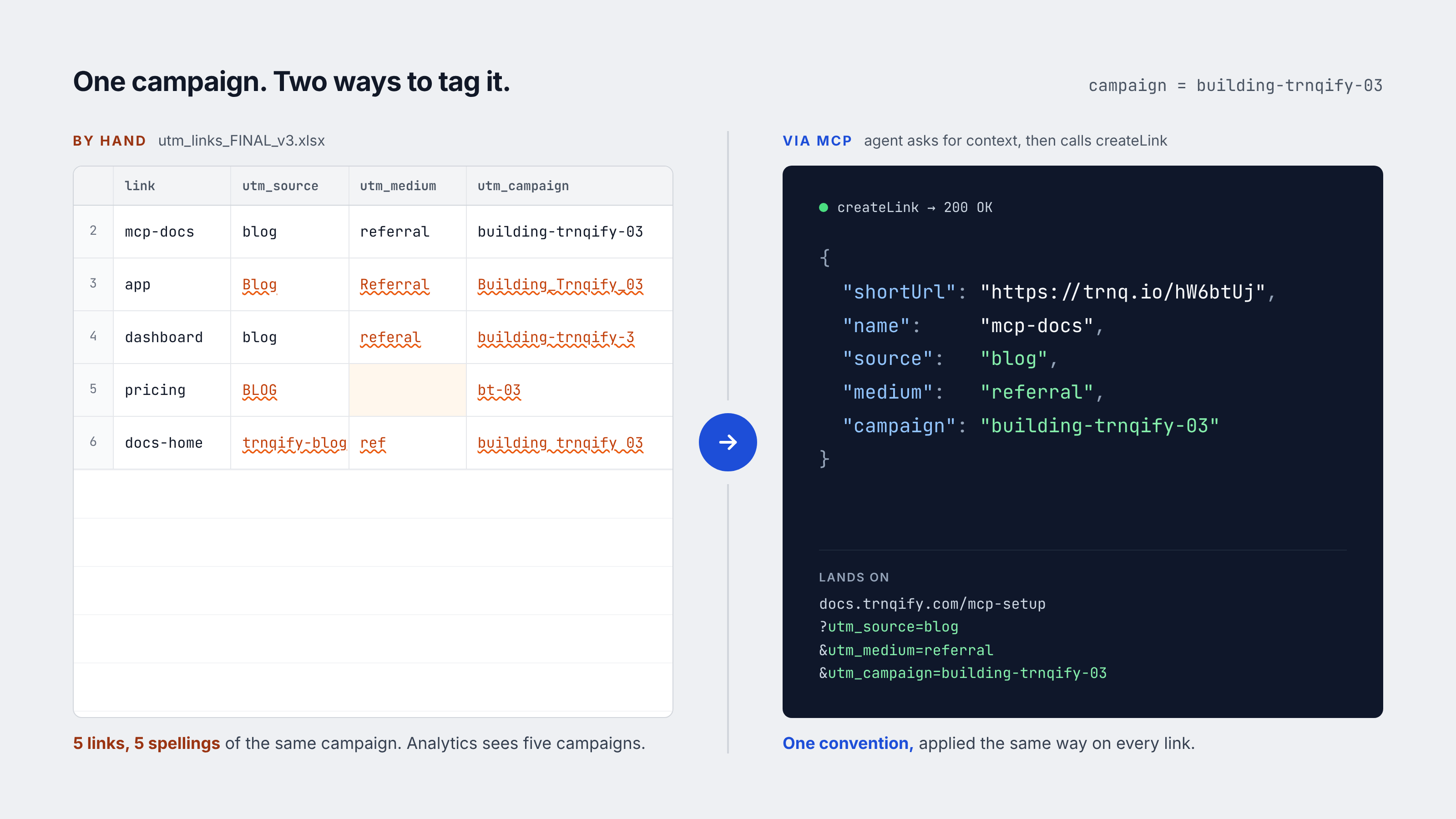
Image created with AI.
What the schema enforces (and what it doesn’t)
The key design principle: intentional constraints prevent mistakes.
When I first exposed the MCP server, UTM parameters were optional. The agent created links without them — not because it was broken, but because nothing in the schema required them. That’s on me. The fix wasn’t to add more tools; it was to make the AI agent ask for context before calling createLink. If the agent asks “what’s this link for?” and the user says “a blog post about MCP servers,” the agent can infer reasonable UTM values. If it doesn’t ask, I’d rather not have the link at all.
This is a design choice: we don’t normalize UTMs (we won’t map “facebook” to “fb”), and we don’t support bulk import (that’s what the API is for). These aren’t missing features — they’re boundaries. The fewer tools an agent has, the easier it is to reason about what it’s doing.
The updateLink tool exists for the cases where links need updating after creation. Agents rarely use it, and that’s by design: good schema constraints mean most links don’t need updates. But when they do, the tool is there, fully functional with all the same UTM and metadata options.
Set it up
If you want to use Trnqify’s MCP server, the docs are at docs.trnqify.com. The setup is straightforward:
- Sign up for a Standard or Pro plan at app.trnqify.com
- Follow the MCP setup guide in the docs
- Point your AI agent (Claude, ChatGPT) at the MCP server
Try Standard free for 14 days. No card. Sign up, or log in to your Free account, and the trial starts automatically. After that it’s $9/month if you add a card, or you go back to the Free plan.
Once it’s set up, every link created through the agent gets full UTM tracking and a shortUrl back. The analytics dashboard shows you where those clicks came from — city-level, aggregate only, no cookies on the redirect domain.
You can also see your links in the dashboard: app.trnqify.com/dashboard (shortened through the MCP server with source=blog, campaign=building-trnqify-03).
Image created with AI.
What to do next
If you’re building with agents, give them a link shortener. Four tools is enough. Make UTM tags required in the schema, or don’t let them create links at all.
Have a suggestion? If you’re using the MCP server and have ideas for features or improvements, I’d love to hear them. Email support@trnqify.com with “MCP feedback” in the subject line — I read every message.
Frequently Asked Questions
What tools does the Trnqify MCP server expose?
Four: createLink, getLink, listLinks, and updateLink. That is the entire surface area. No bulk import, no team management, no UTM normalization — nothing extra to misconfigure or break.
Do I need a paid plan for the MCP server?
Yes. The MCP server works on Standard ($9/month) and Pro plans; the free plan does not include it. Authentication is automatic — there is no key to manage, no token to pass. The system handles it behind the scenes.
Why only four tools? Was anything deliberately left out?
Every additional tool is another path for an agent to do something you did not intend. With four tools, the agent can create links, retrieve them, list them, and update them — what a link shortener needs from an agent's perspective. Bulk import and team management belong to the REST API.
What happens if an agent creates a link without UTM tags?
The first version of the MCP server made UTM parameters optional. The agent created links without them — not because it was broken, but because nothing in the schema required them. The fix was to make the agent ask for context before calling createLink, so links are created intentionally.
How do I set up the MCP server?
Sign up for a Standard or Pro plan, follow the setup guide in the Trnqify docs, and point your AI agent at the server. Every link created through the agent gets full UTM tracking.